Quick Start
Installation
The SDK requires Python 3.10 or higher. We recommend using uv to manage your Python versions and virtual environments. uv is an extremely fast Python package installer and resolver that simplifies project setup.
The instructions below show the necessary steps to get started with the SDK on a fresh install using uv.
Windows
Install uv
Open PowerShell and run the following command to install uv:
powershell -ExecutionPolicy ByPass -c "irm https://astral.sh/uv/install.ps1 | iex"
Create a virtual environment
Using a virtual environment is highly recommended to isolate project dependencies.
# Create a new project folder and navigate into it
mkdir drone_project
cd .\drone_project

# Create a virtual environment using Python 3.13 (uv will download it if needed)
uv venv -p 3.13
.venv folder in your project directory.
Activate the virtual environment:
.\.venv\Scripts\activate
Install the SDK
Now we're ready to install the SDK into our active virtual environment:
uv pip install blueye.sdk
Or, to include the dependencies required for running the examples:
uv pip install "blueye.sdk[examples]"
macOS and Linux
Install uv
Open your terminal and run the following command to install uv:
curl -LsSf https://astral.sh/uv/install.sh | sh
uv to your shell's PATH, or simply restart your terminal.
Create a virtual environment
Using a virtual environment is highly recommended to isolate project dependencies.
# Create a new project folder and navigate into it
mkdir drone_project
cd drone_project

# Create a virtual environment using Python 3.13 (uv will download it if needed)
uv venv -p 3.13
.venv folder in your project directory.
Activate the virtual environment:
source .venv/bin/activate
Install the SDK
Now we're ready to install the SDK into our active virtual environment:
uv pip install blueye.sdk
Or, to include the dependencies required for running the examples:
uv pip install "blueye.sdk[examples]"
Connect to the drone
To use the SDK, your computer must be connected to the drone via the surface unit WiFi. For instructions on how to turn on the drone and surface unit, you can watch the quick start video.
Control the drone
Most of the functionality is controlled using Python properties. We will illustrate the use of properties by showing how to control the lights:
import time
from blueye.sdk import Drone

# When the Drone object is instantiated, a connection to the drone is established
myDrone = Drone()

# Setting the lights property to 0.1 (10 %)
myDrone.lights = 0.1

time.sleep(2)

# We can also get the current brightness of the lights through the lights property
print(f"Current light intensity: {myDrone.lights}")
myDrone.lights = 0

# Properties can also be used for reading telemetry data from the drone
print(f"Current depth in meters: {myDrone.depth}")
Reference section of the documentation.
The valid input ranges and descriptions of the different properties can also be found there.
Tip
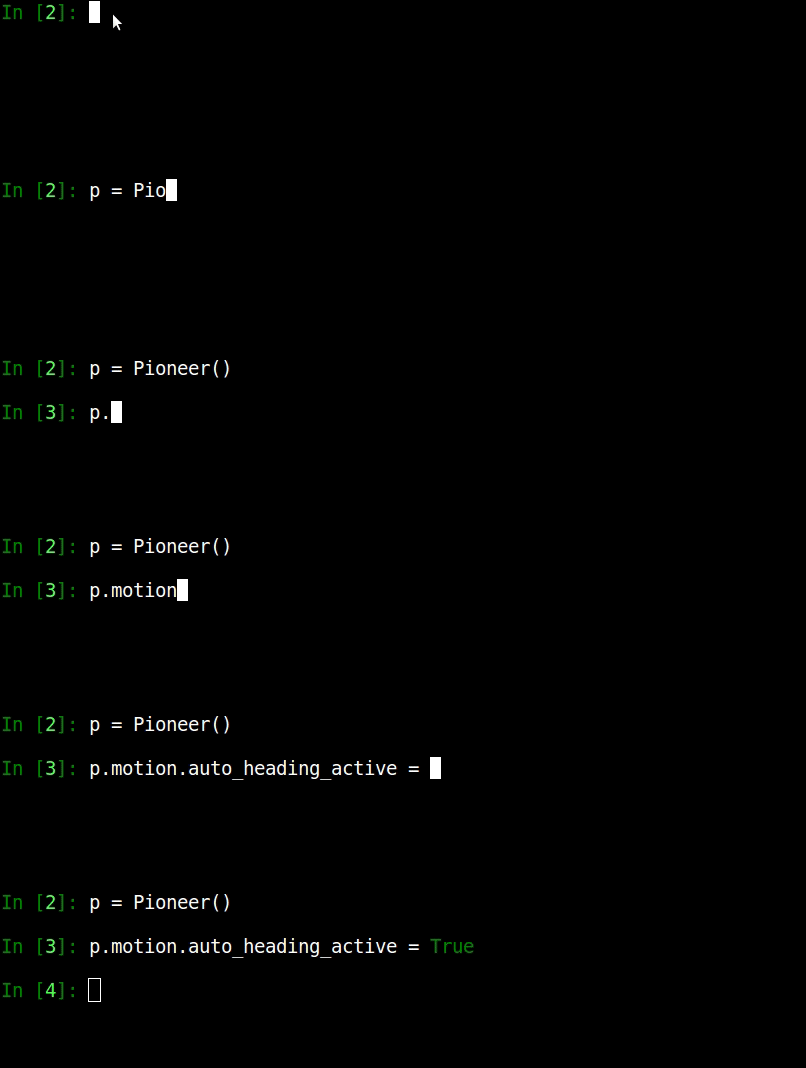
You can explore the properties of the drone interactively using an interactive Python interpreter like
iPython, which can be installed with:
uv pip install ipython
tab-key ↹), you can get an interactive list of
the available properties on the drone, making it easy to try setting and getting the different properties.
Watching the video stream
The easiest way to open the RTSP video stream is by using VLC media player.
Once VLC is downloaded, you can start the stream like this. The RTSP URL is: rtsp://192.168.1.101:8554/test
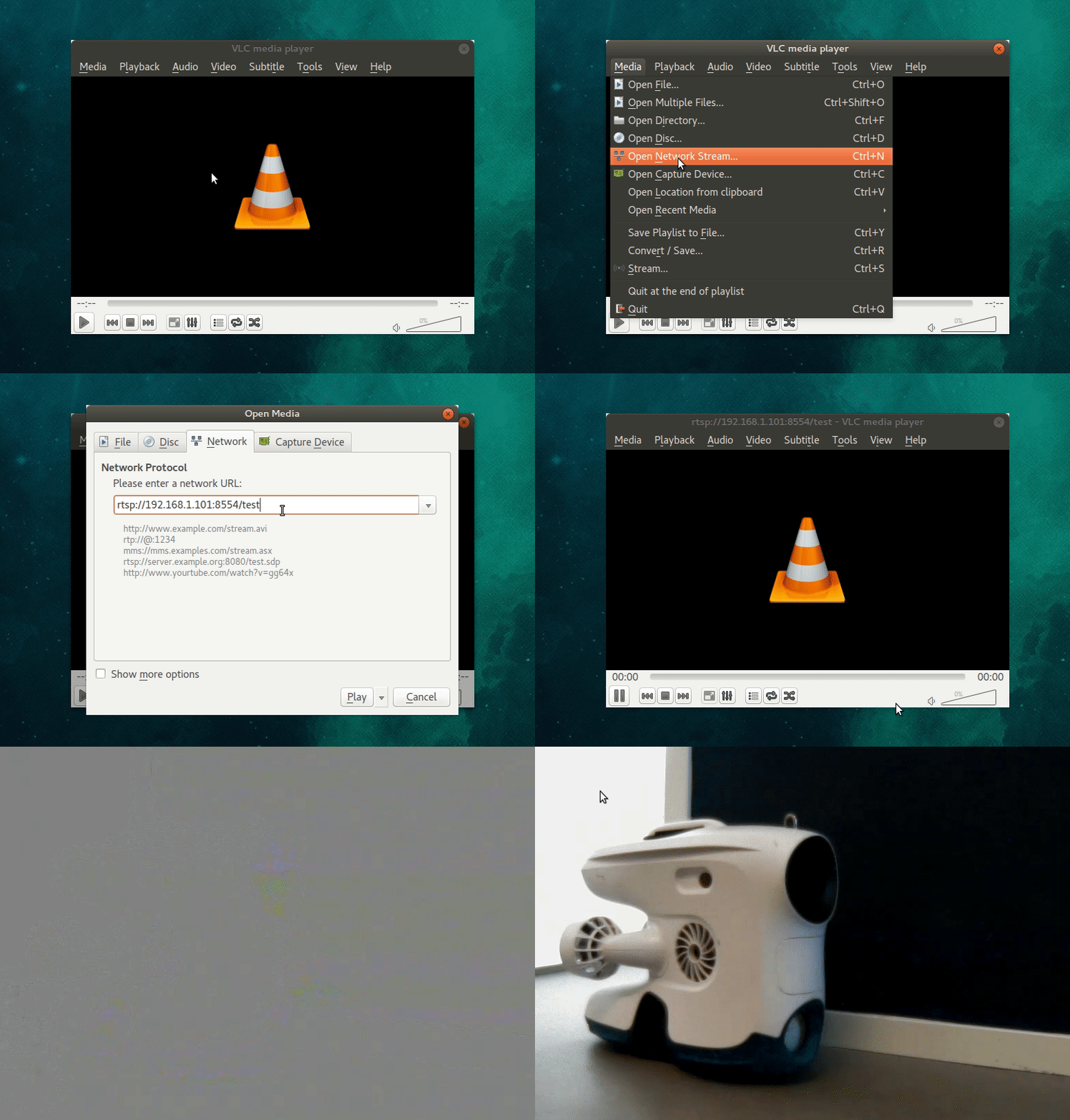
For lower latency streaming (on a PC), you can see the instructions on using
Gstreamer, or if you just want to watch a low-latency
stream, you can download the Blueye Observer app.
(iOS /
Android)
The normal Blueye app cannot be used to spectate when controlling the drone from the SDK because it will interfere with the commands sent from the SDK. The Observer app, however, is only a spectator and can be used together with the SDK.
Explore the examples
For further examples on how to use the SDK to control the drone have a look at the motion examples.
Remember to install the example dependencies before running the examples.
uv pip install "blueye.sdk[examples]"
Local documentation
Since the drone surface unit (usually) does not have internet access it can be a bit tricky to reference this documentation while developing on the drone. Luckily when you install the SDK from PyPI it includes a pre-built, local copy of this documentation. This documentation can be viewed by executing the following Python snippet:
import blueye.sdk

blueye.sdk.open_local_documentation()